Use the “Vary Region” editor to select and regenerate specific parts of an upscaled image.
·Vary (Region) This button appears after a Midjourney image is upscaled.
·The region variation is determined by the content in the original image and the region you select.
·Vary (Region) is compatible with Midjourney model versions V5, V6, niji 5, and niji 6.
How to use Vary Region
1. Generate an image
Use the /imagine command to create an image.

2. Upscale the image
Use the U button to upscale the image you selected.
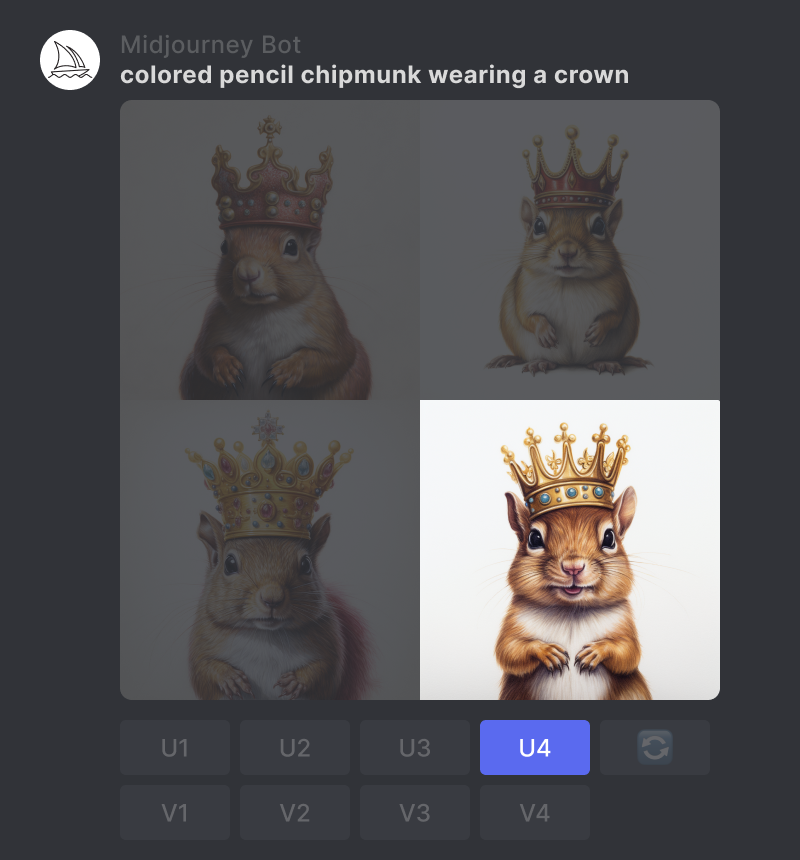
3. Select a different region
Click the 🖌️ Vary (Region) button to open the editor.
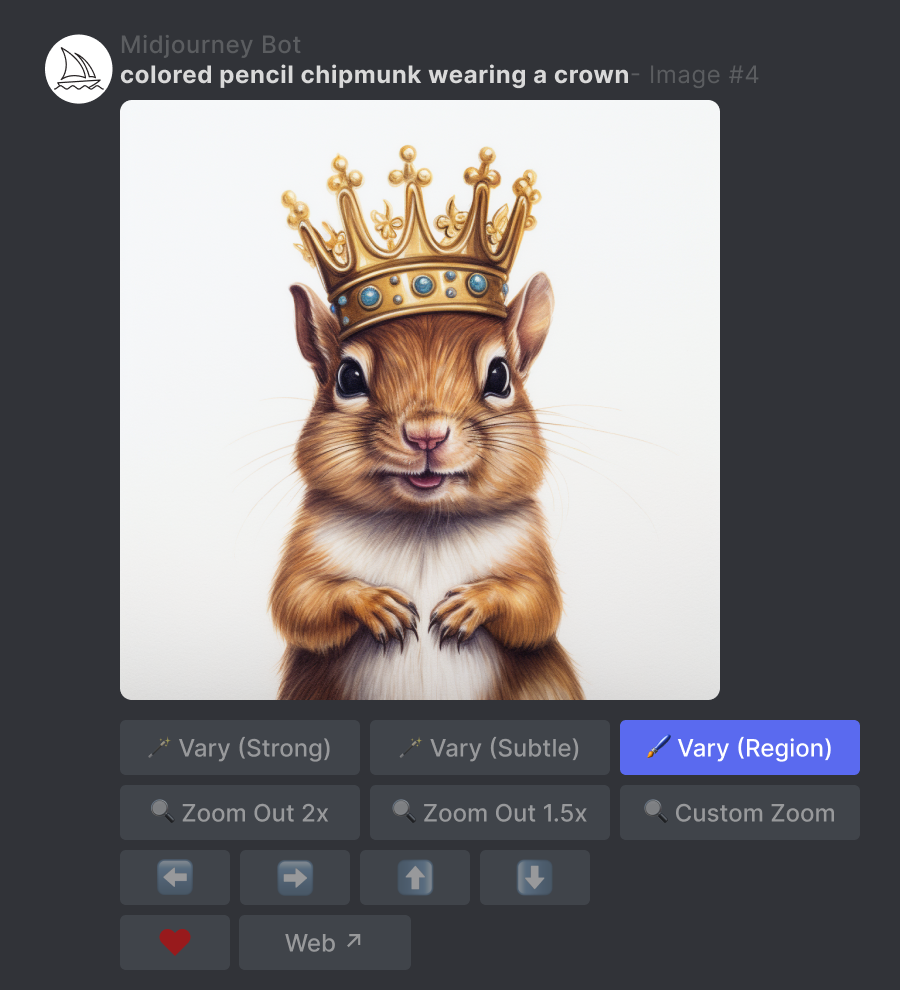
4. Select the region to regenerate
Select the free selection tool or the rectangular selection tool in the lower-left corner of the editor.
Select the area of the image you want to regenerate.
The size of your selection affects the result. The larger the selection, the more room the Midjourney Bot has to generate new creative details. The smaller the selection, the smaller and more subtle the changes.
Note: You cannot edit an existing selection, but you can use the undo button in the upper-right corner to undo multiple steps.
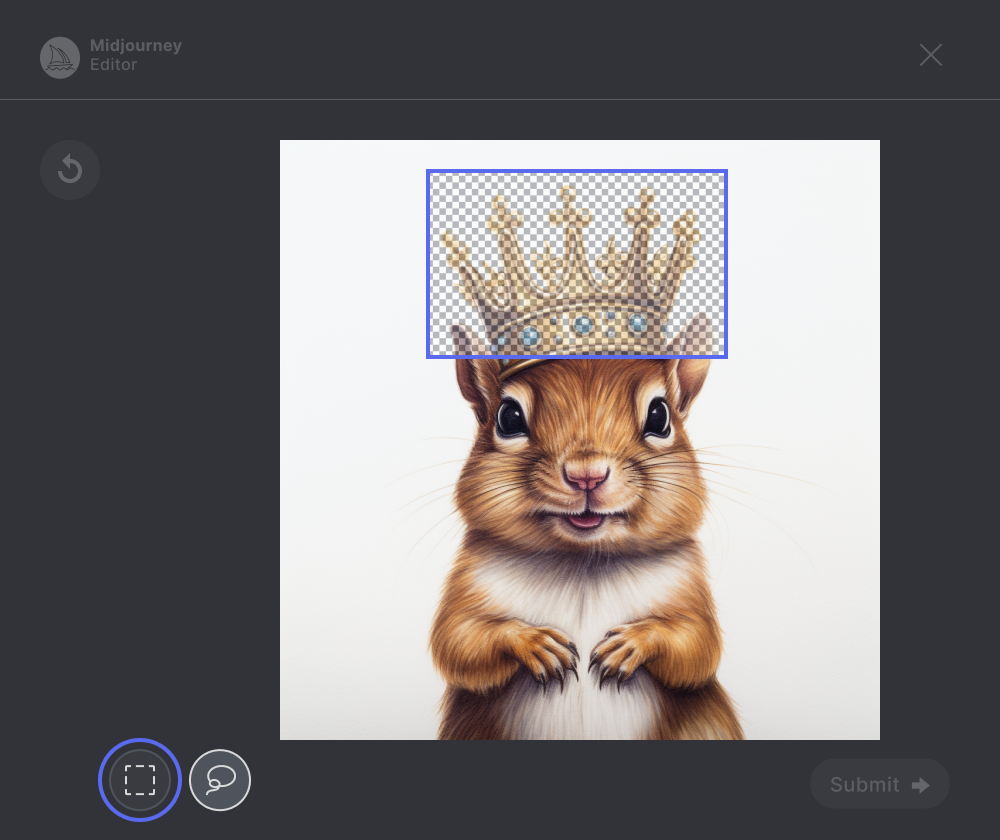
5. Submit your job
Click the Submit → button to send your request to the Midjourney Bot. You can now close the Vary Region editor, and you can return to Discord while the job is processing.
Note: You can use the 🖌️ Vary (Region) button below the upscaled image multiple times to try different selections. Your previous selection will be retained. You can continue adding to the existing selection, or use the undo button to clear the selection.

6. View the results
The Midjourney Bot will process your job and generate a new grid of variation images within the region you selected.
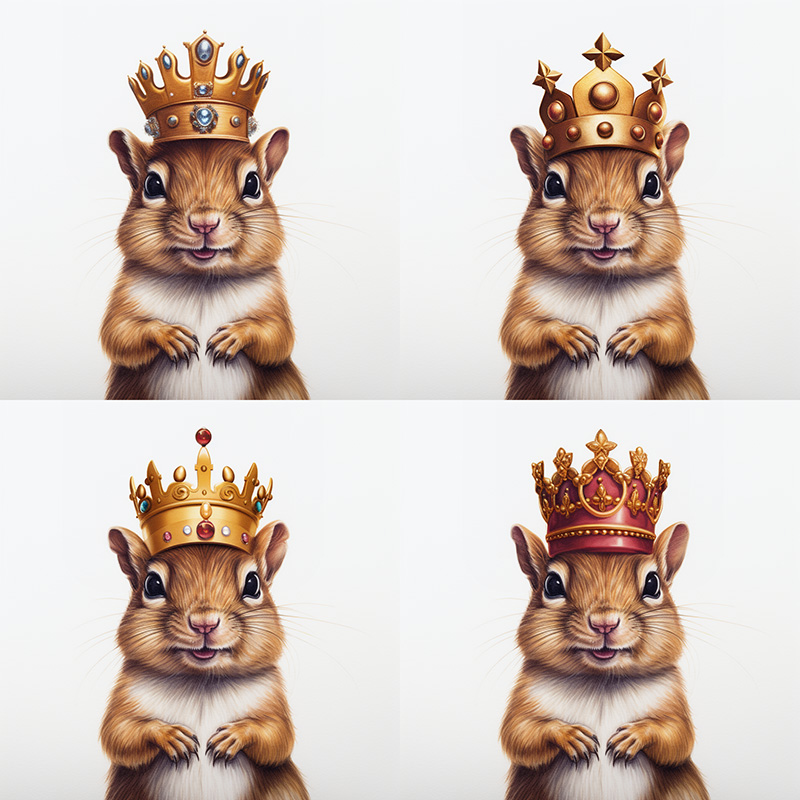
Examples of changing the Vary Region selection

Changing the region + Remix mode
You can combine Remix mode with the Vary Region editor to update the prompt when regenerating specific parts of the image. Read the information about using Remix mode with the Vary Region editor.

Technical details
Jobs generated using Vary (Region) will follow these parameters:
--chaos
--fast
--iw
--no
--stylize
--relax
--style
--version
--video
--weird |


 |NIUBOYI
( 京ICP备17025393号 )|网站地图
|NIUBOYI
( 京ICP备17025393号 )|网站地图