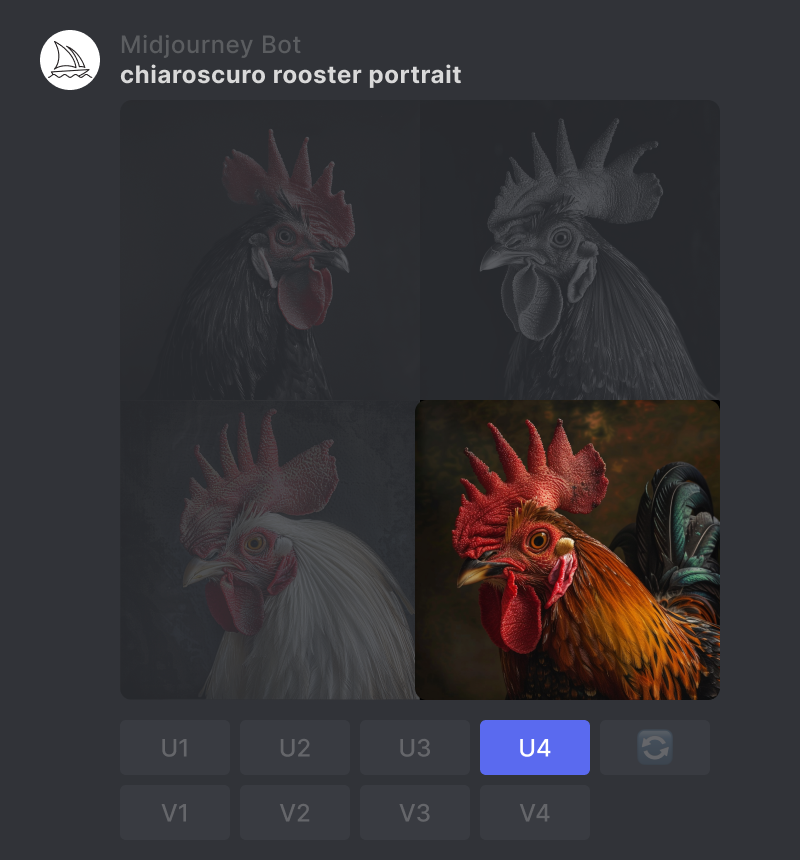
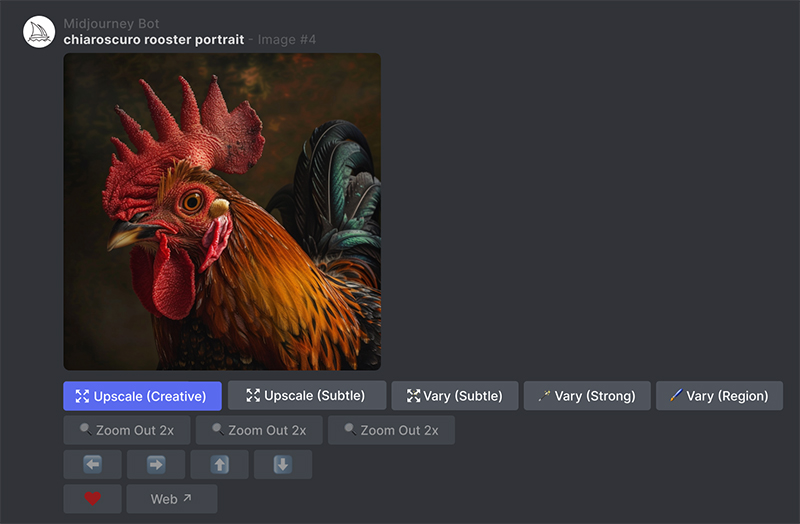
Current Midjourney and Niji model versions can generate 1024 x 1024 pixel image grids. Use the U1 U2 U3 U4 buttons below each image grid to separate the selected image from its grid. Then, you can use the Upscale (Creative) or Upscale (Subtle) tool to increase the image size.
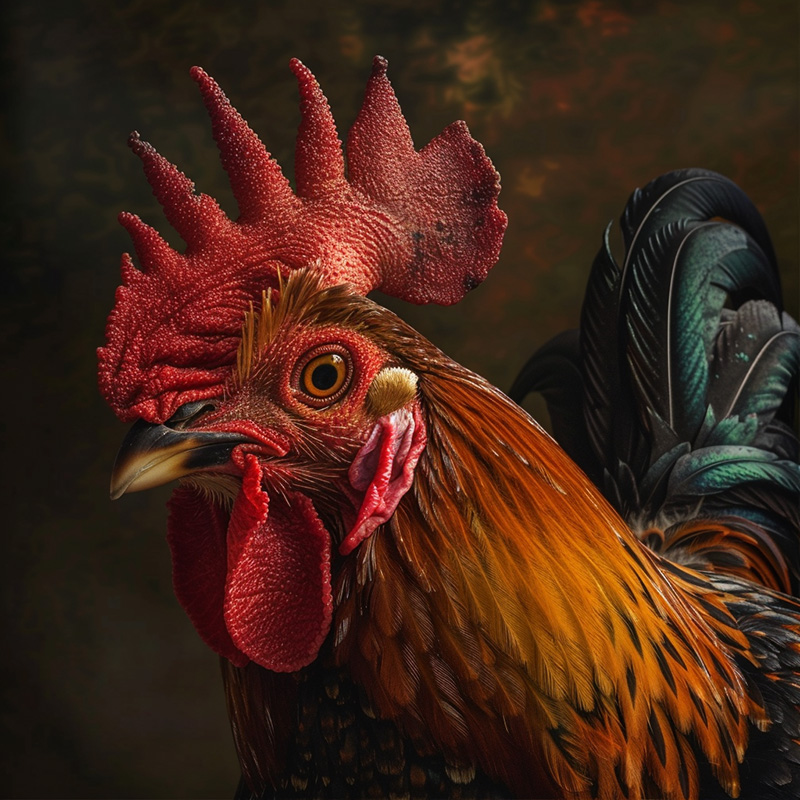
The Upscale (Subtle) option doubles the image size while preserving details very similar to the original image. The Upscale (Creative) option also doubles the image size but adds new details to the image. Try each upscale option to find the one that best suits your image style.
·The Upscale tool uses GPU minutes from your subscription. Upscaling may require twice as many GPU minutes as generating the initial image grid.
·The Upscale tool is incompatible with the --tile parameter.
How to Use the Upscale Tool
1. Generate an Image
Use the /imagine command to create an image.
2. Select an Image
Use the U buttons to separate the image you selected from the grid.
3. Choose an Upscale
Click the Upscale (Subtle) or Upscale (Creative) button to upscale the image. The upscaler will double the image size to 2048 x 2048 pixels.
Upscale Comparison
Prompt: chiaroscuro rooster portrait
The original image is 1024 x 1024 pixels.
Upscale Comparison
Prompt: 1960s pop-art acrylic painting of a stream running through a redwood forest
Tip: Use the /show command to refresh upscale jobs you generated before the new upscaler was released. Buttons for all upscalers compatible with that image will appear under the refreshed job.


 |NIUBOYI
( 京ICP备17025393号 )|网站地图
|NIUBOYI
( 京ICP备17025393号 )|网站地图