Enabling Remix Mode
After generating an image, you can edit the prompt text and parameters. It can help you change the image's settings or lighting, evolve a theme, or achieve complex compositions.
Use the /prefer remix command or use the /settings command and click the 🎛️ Remix Mode button to turn on Remix Mode.
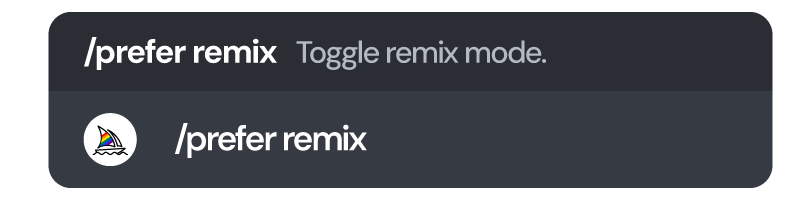
Once enabled, Remix Mode lets you edit the prompt when creating variations of generated images (including Vary (Region)), rerolling 🔄, or panning.
·When using Remix Mode, in addition to prompt text, you can also edit image references, model versions, parameters, and weights, but the resulting combination of prompt elements must still be valid.
·If you do not make any changes to the prompt in the Remix window, Midjourney will generate normal variations.
·Remixing takes your variation mode settings into account.
·When Remix Mode is enabled, the V button turns green instead of blue when clicked.
Using Remix
Use the /prefer remix command or use the /settings command and click the 🎛️ Remix Mode button to turn on Remix Mode. After Remix Mode is active:


Changing Parameters with Remix
You can add or remove parameters while using Remix Mode, but you must use valid parameter combinations. Changing /imagine prompt illustrated stack of pumpkins --version 3 --stylize 10000 to illustrated stack of pumpkins --version 4 --stylize 10000 will return an error because Midjourney model version 4 is incompatible with Stylize values over 1000.
When using Remix, only parameters that normally affect variations will take effect:

Changing the aspect ratio with Remix stretches the image. It does not expand the canvas, add missing details, or fix improper cropping. To adjust the aspect ratio or fix cropping issues, try zooming or panning.
Variation Mode and Remix
In Midjourney versions 5 and 6, as well as Niji versions 5 and 6, you can choose between 🎨 High Variation Mode (default) and 🎨 Low Variation Mode. This setting also applies to Remixing variations, meaning you will see stronger variations in High Variation Mode and subtler variations in Low Variation Mode. For example, if you have Low Variation Mode enabled, it may be difficult to use Remix to change the subject or composition of an image, but it is useful for changing details.

|


 |NIUBOYI
( 京ICP备17025393号 )|网站地图
|NIUBOYI
( 京ICP备17025393号 )|网站地图